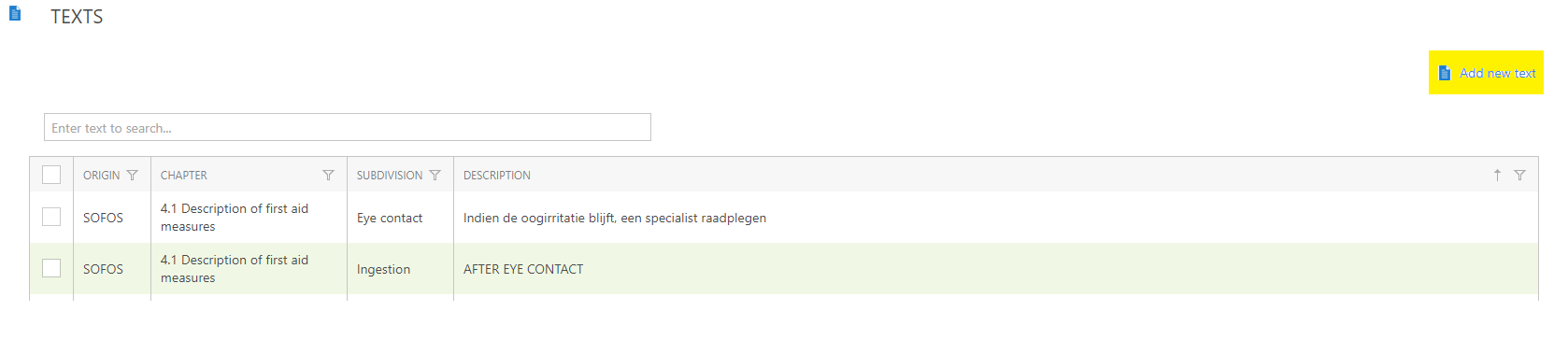
New substance texts can be added easier
This version makes it easy to add missing substance texts to SOFOS. The screen where current substance text can be linked to a substance now includes an 'Add new text' button. This button enables you to add new texts to a chapter/subdivision. You no longer need to leave the substance to do this. You can enter text in four languages and connect to it immediately to the substance after saving.
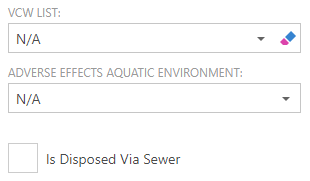
It is now possible to identify whether a substance is discharged through a sewer
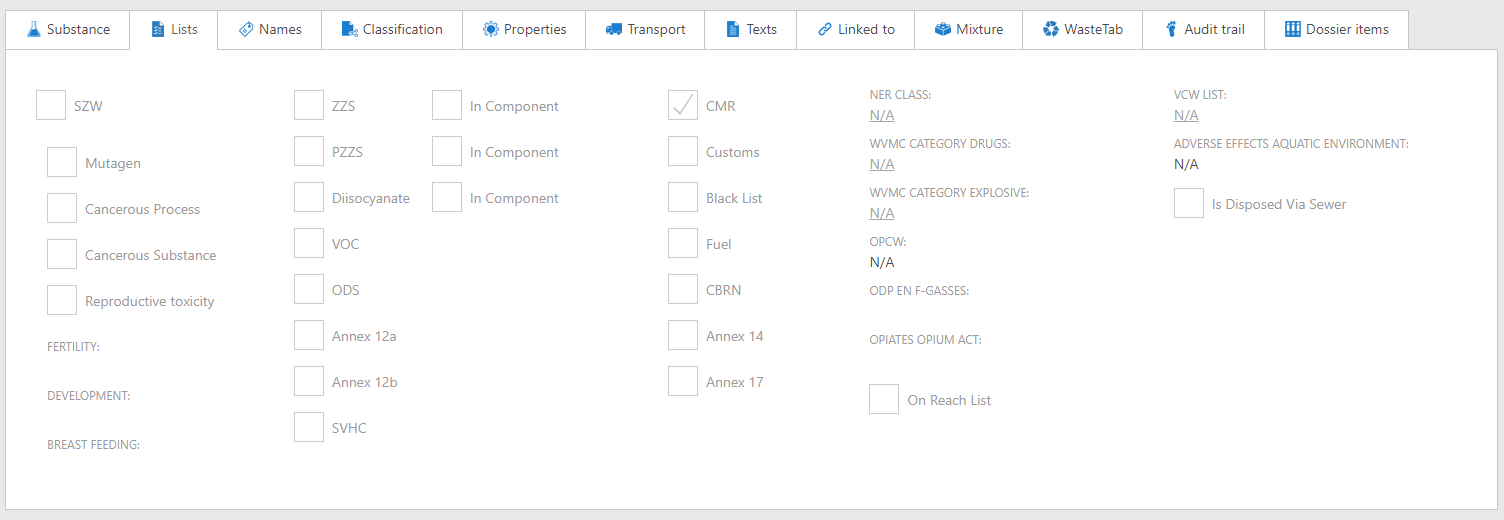
On the 'Lists' tab of the substance screen, you can specify whether the substance is released through the sewer. This field is located below to the field which indicates the substance's water danger. The fact that a substance may or may not be discharged through the sewer is determined not only by the water danger but also by agreements with the competent authority. As a result, checking the field will always be the responsibility of the user.
The opening behavior can now be modified per the overview screen
SOFOS provides an enormous number of overview screens that display data in a list form. The purpose of such a screen is to search for an element in the list and then open a detailed screen to view or modify the element. When an overview screen is accessed, it typically retains all data per page, the search term, and any filters so that they can be applied to the list again when the overview screen is reopened. In some cases, this is not desired, and it is necessary to begin with an empty overview screen or not preserve the search term.
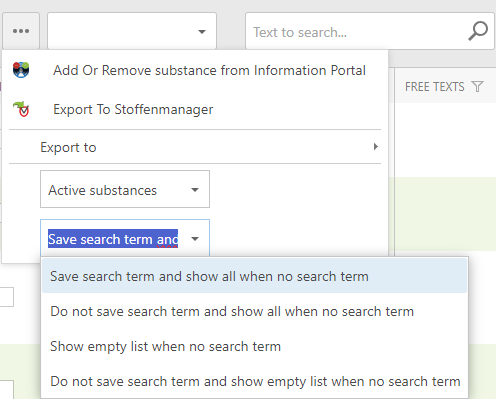
From this version forward, each user can now specify what the behavior should be when opening the screen per overview screen. You have four options:
- Save the search term and show all if there is no search term. This is the default behavior of overview screens.
- Do not save search term, show all when no search term.
- Save the search term and display empty list if there is no search term.
- Do not save search term, show an empty list when no search term.
A drop-down list (could be 'behind the dots') above the overview allows you to change its behavior. This can be set for each overview screen. The option affects both the search term input at the top right and the filter, which can be entered via the filter row.
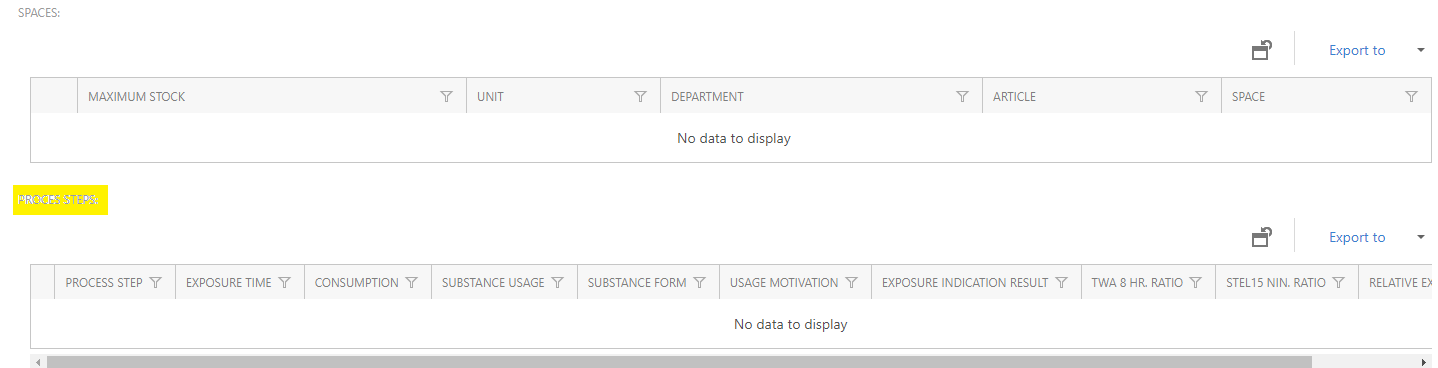
The process steps associated with CMR substances are now visible for a compound
If a substance is included in the CMR registration, it will be visible on the 'Linked to' tab starting with this version. From the overview, you can quickly access the substance's registration information.
The PGS-15 analysis has been revised and expanded.
In this version, the PGS15 analysis is based on the regulations outlined in the 'Manual PGS15 version 2016', which can be found on the Ministry of Infrastructure and Water Management website. The analysis includes regulations that can be examined by a computer program using data from SOFOS.
From this version it is possible to perform the PGS15 analysis using either the maximum stock or the current stock. The 'Stock' module is required for the latter analysis.
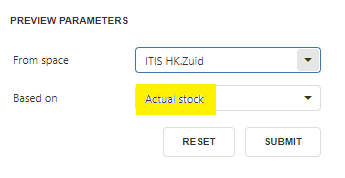
Finally, if there is a PGS15 problem in a room, building etc., you will notice an active PGS15 report button on the pot and space screens. By clicking the button, a report including the room's analysis will be displayed. The initial check of the space (to identify whether the button is active or inactive) will not use the current user's authorization rules. When you display the report, the current authorisation rules will be used. This allows a user to see that there is a problem in a room, but they may not always be able to determine what the problem is because some data is protected by authorisation restrictions.
The same button is also available on all screens where pot transactions can be completed (create pots, distribute pots, etc.), and the situation will be examined, including the mutation that has yet to be performed. This enables the user to observe that an issue will occur if a pot is placed in a room. The details of the pot yet to be placed will be displayed differently in the report, making it clear that it is a pot yet to be placed.

A previously used pot can be put back into use
From this version, you can use a previously used pot again. To do this, the pot's status will be returned to its previous status before being marked as consumed. The amount and location of the pot will also be set to the most latest status.

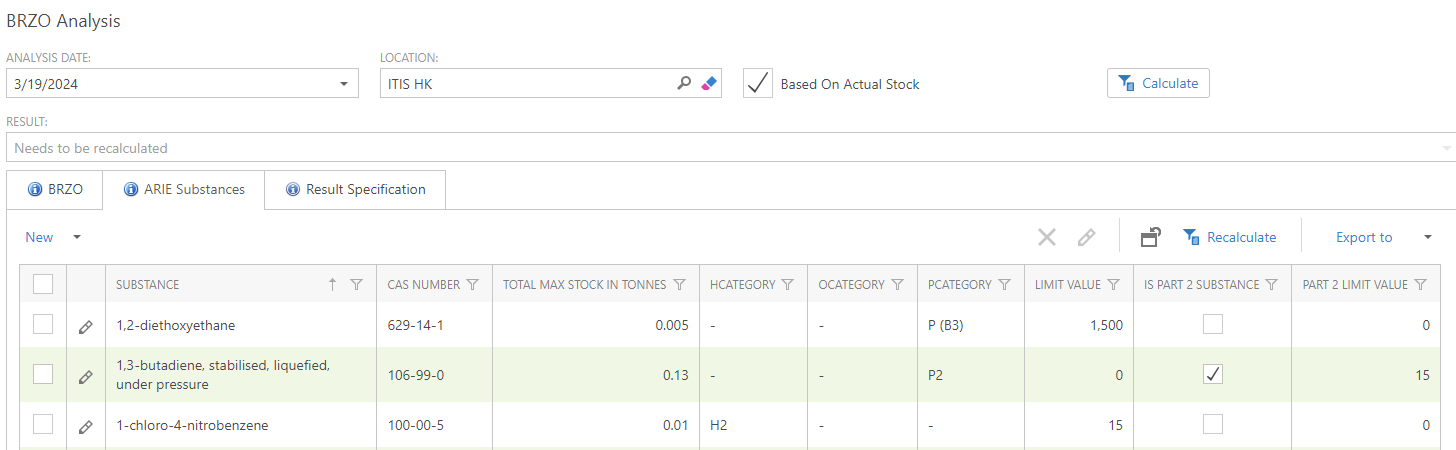
The BRZO-analysis has been extended with the ARIE analysis
From this version forward, the ARIE analysis will be performed alongside the BRZO analysis. This Additional Risk Inventory and Evaluation becomes effective in January 2023. Organizations must determine whether the ARIE scheme applies to them..
The BRZO/ARIE Analysis can assist with this. Based on the categories and numbers of hazardous substances in your organization, the analysis determines if you fall under the BRZO (high or low threshold), the ARIE, or none.
The substances in the information portal can be filtered by department
It is now possible to select a department from the information portal, and only substances that are actively connected to that department will be displayed. In addition, all substances placed in a room associated with the selected department will be displayed as well. A substance can be introduced into a room via a pot or through the maximum stock.

Possibility to hide rarely used units from the dropdown list
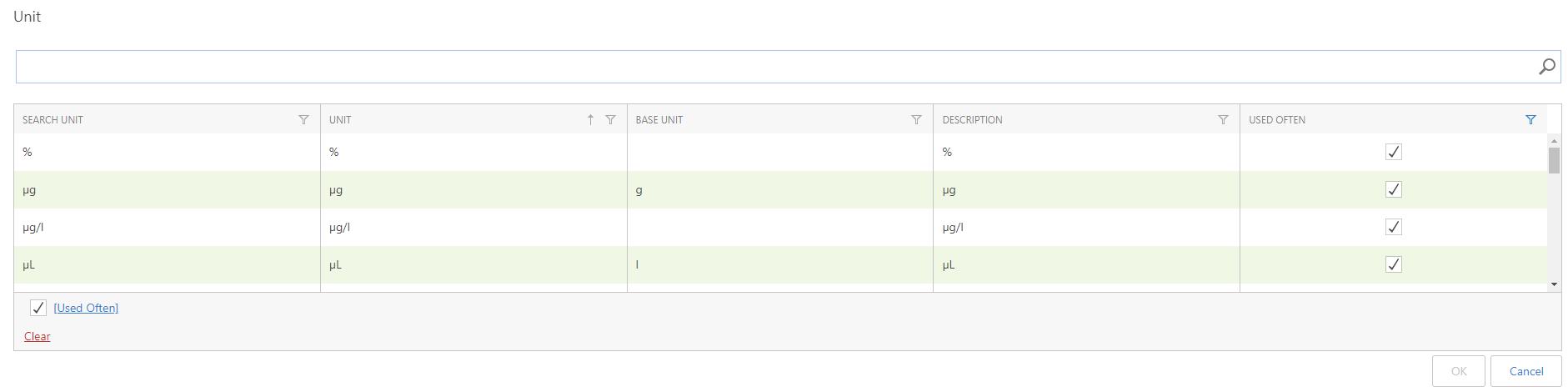
SOFOS provides a list of all units used. Many of these units are rarely used and should not be included in the list of possible units. This version allows you to indicate commonly used units so that they display first in the selection list. You can alternatively make all units visible with a single click. Initially, all units used in an article are listed as 'Used often'. You can also add and remove units from the list yourself.
The message screen at startup can now display almost expired pots
At startup, SOFOS already displayed a screen with all documents that would expire within 30 days. This list of documents about to expire can also be accessed by clicking on the notification button. From this version forward, it is also possible to include pots in this overview that will expire in 30 days. Because there may be a large number of pots, it is possible to specify per user which almost expired pots should be displayed in the list. You can specify an extensive filter. You can also create such a filter for your documents.

New lists
This version introduces seven new lists. The following lists have been added: Drug precursors, ODP and F-gases, SVHC, Diisocyanates, OPCW, Opiates, and the REACH authorisation list. You can retrieve data from these lists and have it processed in your substance databases by selecting 'External lists' from the main menu. The 'Lists' tab specifies which lists the substance appears in. In some cases, more information about the list's format is provided. The 'In component' field displays mixtures in which at least one of the mixture components appears on the ZZS, PZZS, and/or diisocyanate lists. .
Extra additions
- The manufacturer of an article can now be entered.
- The space protection and motivation for using the CMR substance are now included in both CMR-reports.
- The PGS15-overview includes information about the packaging group.
- This version is compatible with the newest versions of the BIG, AZH, and DGZ databases. You can update the substances associated with these databases using the menu item 'External Databases - Update external substance'. This can be a long procedure.
- A user's last login date is recorded. This feature makes it easier to identify inactive users and set them to inactive status.
- Various front- and back-end optimizations and enhancements.
- The new list 'ZZS and PZZS substances and mixtures' can be accessible through the 'Reporting - Substances' menu option. This list includes all ZZS and PZZS substances. This list also includes all mixes with at least one component labeled ZZS or PZZS.
